



Set up your shop, start taking bookings, and manage daily operations from one page.
This help page walks you through the exact order a business owner should follow when starting with FMC. The most important setup steps appear first so you can get booking-ready quickly, then the rest of the page explains how to run your day, manage customers, review performance, and keep communication organized.
Getting Started: Complete These 5 Steps Before Accepting Bookings
A new shop should complete these items in order. Your shop settings, availability, employees, and services work together. Once they are set up, the Today page becomes your command centre for daily operations.
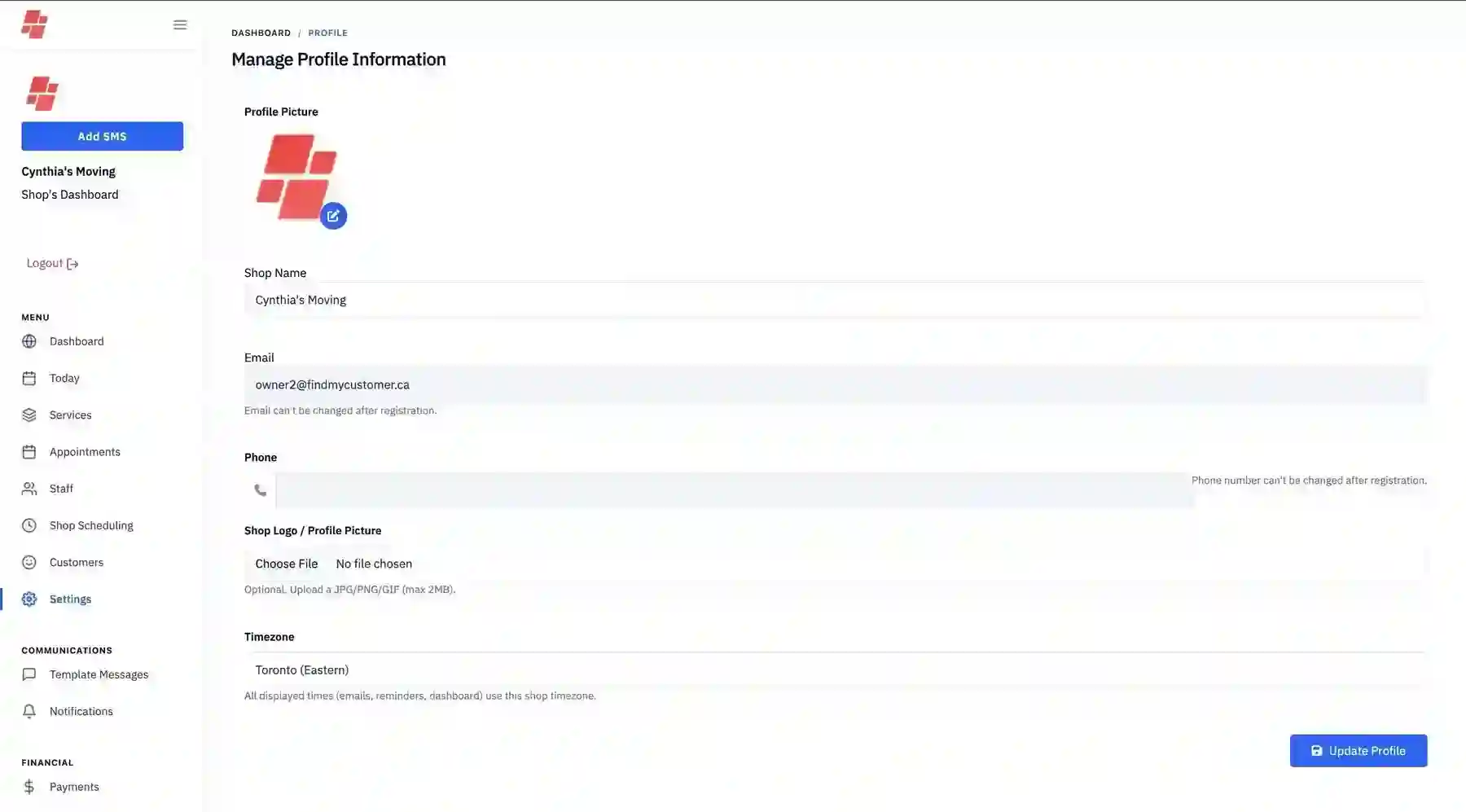
Update Shop Settings
Make sure your branding and business details are accurate before anything customer-facing goes live.
- Upload your logo
- Confirm your timezone
- Verify your address
Set Shop Hours & Holidays
Tell FMC when your business is open, closed, or temporarily unavailable.
- Set working hours
- Add holidays
- Create recurring closures
Add Employees
Staff members can be assigned to services and, when enabled, can access the shop portal.
- Create staff profiles
- Prepare notification details
- Set portal access
Create a Service
Services define what customers can book, how long it takes, who performs it, and how reminders work.
- Add title, description, and price
- Assign providers
- Set visibility and reminders
Run the Day from Today
Once setup is complete, manage appointments, update statuses, and book quickly from one screen.
- See today’s schedule
- Update appointments
- Use quick-add booking tools
Quick Navigation
Use these anchor links to move around the page quickly.
Settings
Start here before anything else. Your logo, timezone, address, password, and booking widget settings all live here. This is the first stop for a new business owner, and it supports the next steps in Shop Scheduling, Staff, and Services.
Upload your logo
Your logo helps your shop look branded anywhere customers see your business.
Confirm your timezone
Your timezone affects appointment timing, reminders, and day planning throughout the system.
Ensure your address is correct
Your shop address should be accurate before you begin sharing booking links with customers.
Update your password
Keep your account secure once your shop is configured and in regular use.

Shop Scheduling
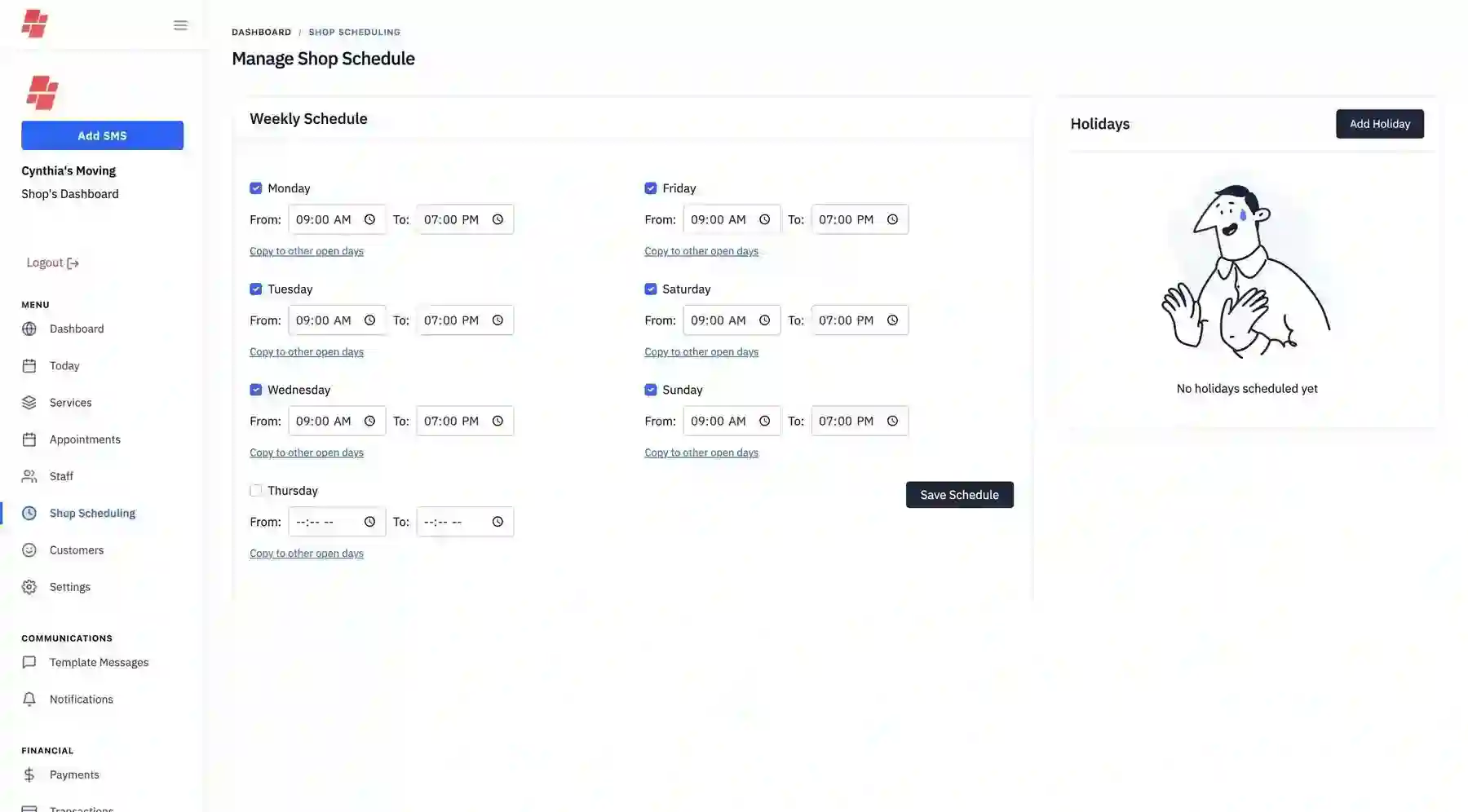
Shop Scheduling tells FMC when customers can and cannot book with you. Configure your working hours first, then layer on holidays and closures. Your scheduling settings work directly with service duration and buffers and with the planner on the Today page.
Set your regular working hours
Update your weekly hours so customers only see bookable times that match your real business schedule.
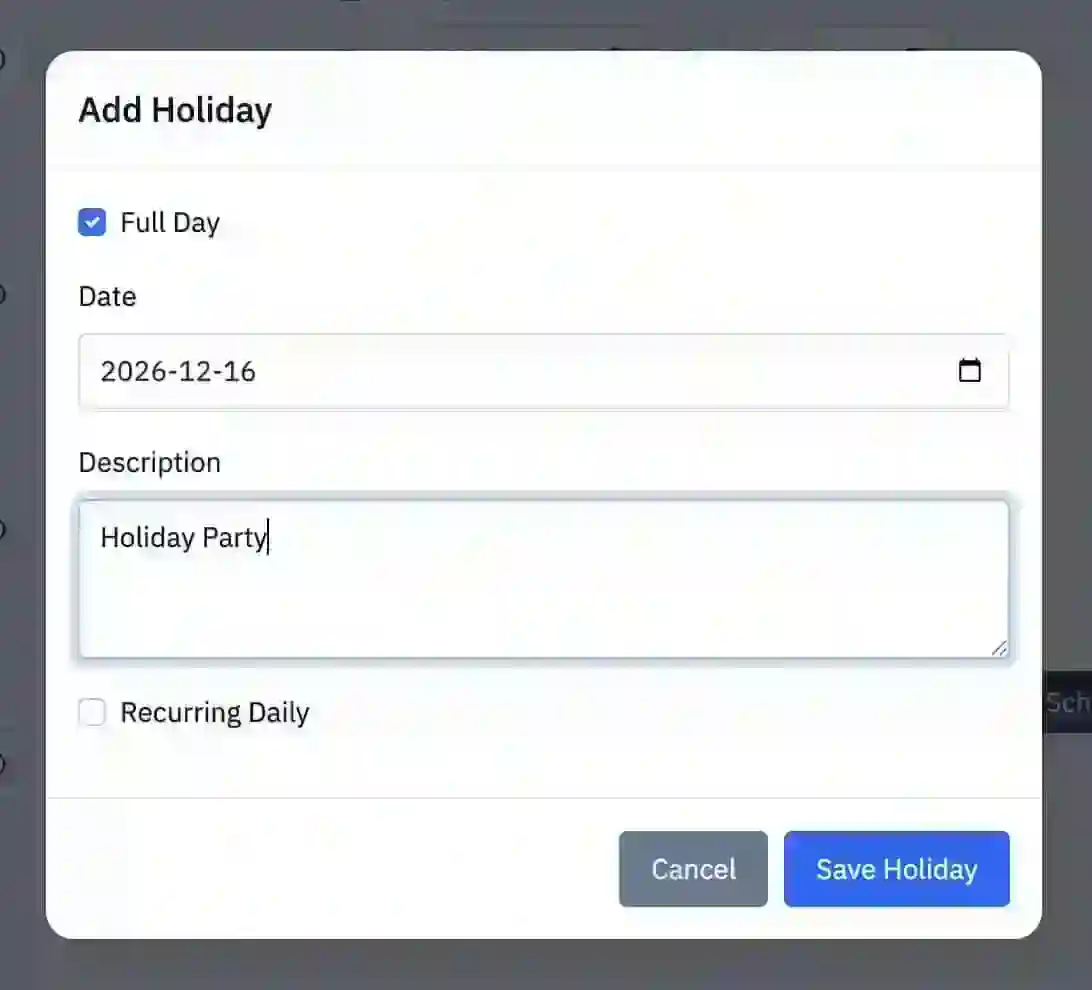
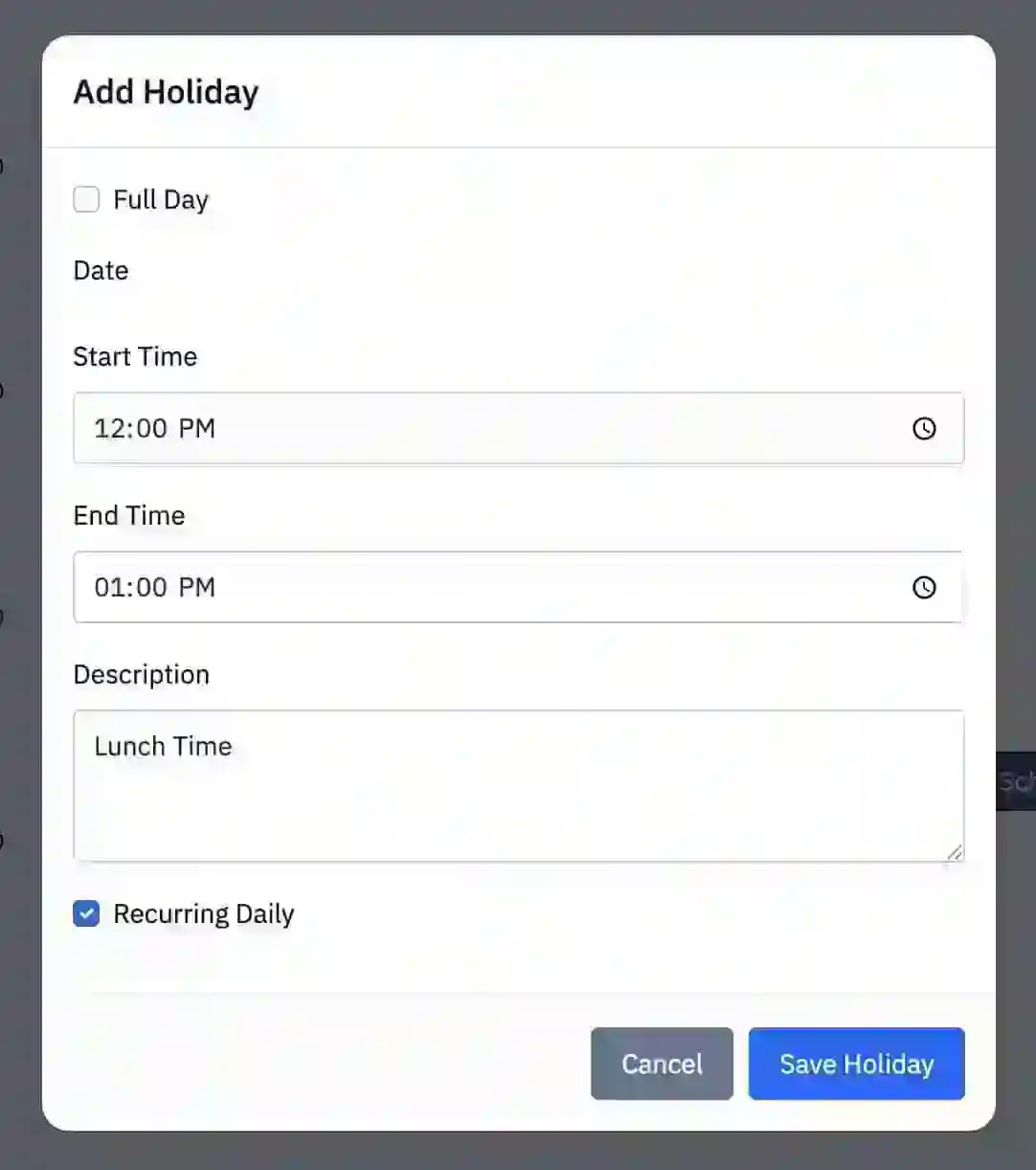
Add holidays and closures
Full day closure
Use this for statutory holidays or any day your business is fully closed.
Partial day closure
Use this for special events, reduced operating hours, or mid-day closures.
Recurring closure
Use recurring blocks for lunch, weekly meetings, or repeated unavailability.
Why it matters
Proper scheduling setup prevents accidental overbooking before customers begin booking services.
Staff
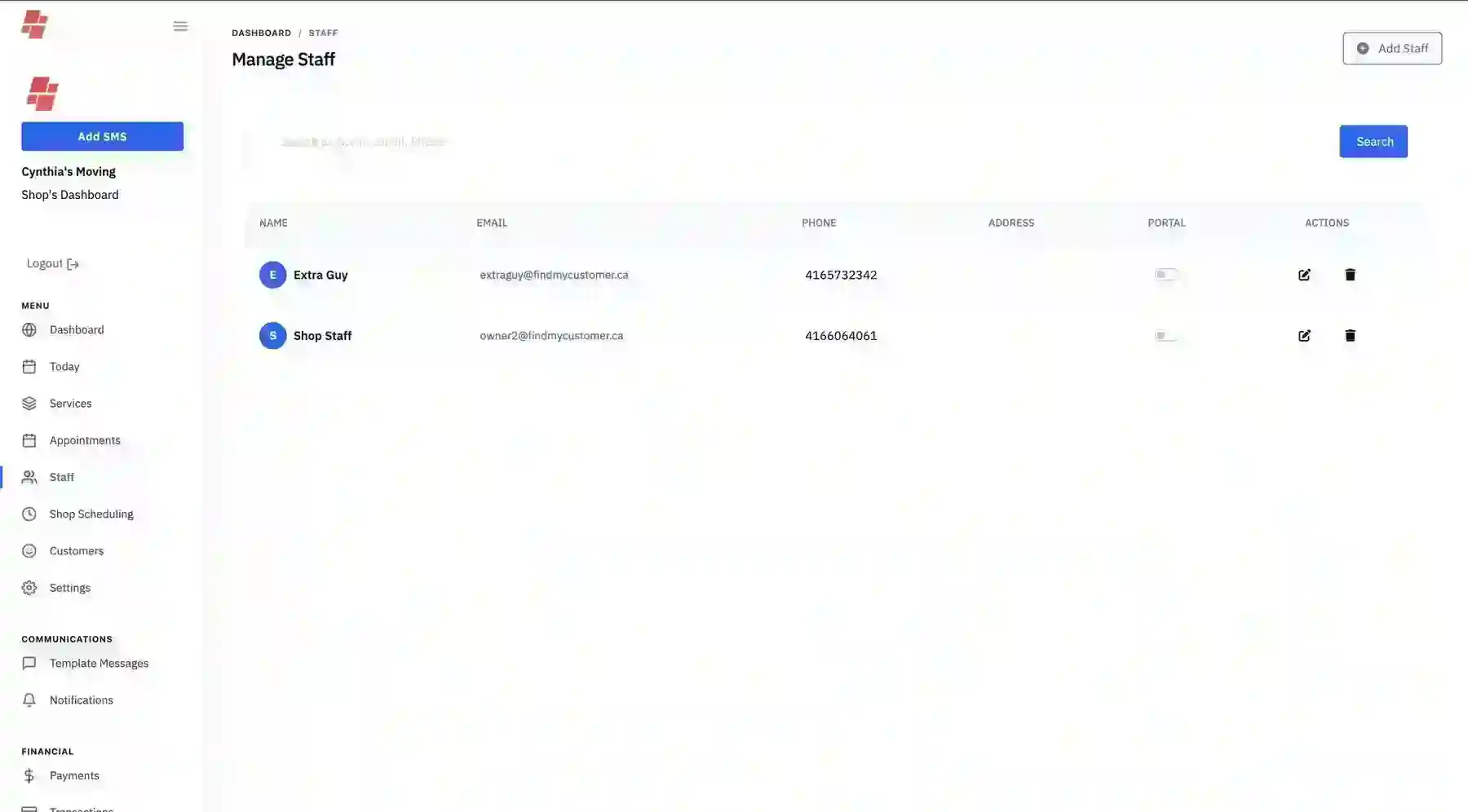
Your business cannot run unless someone is available to do the work. Add staff before you finish configuring Services so providers can be assigned correctly. Staff profiles are also used for internal notifications.
Create staff profiles
Add the employees or providers who perform services for your shop.
Notification details
Staff profiles are used when notifications need to be sent to providers.
Portal access
Use the portal toggle to allow an employee to access the shop’s Today page where appropriate.
Next dependency
Once staff exists, you can assign them to bookable services in the Services section.
Services
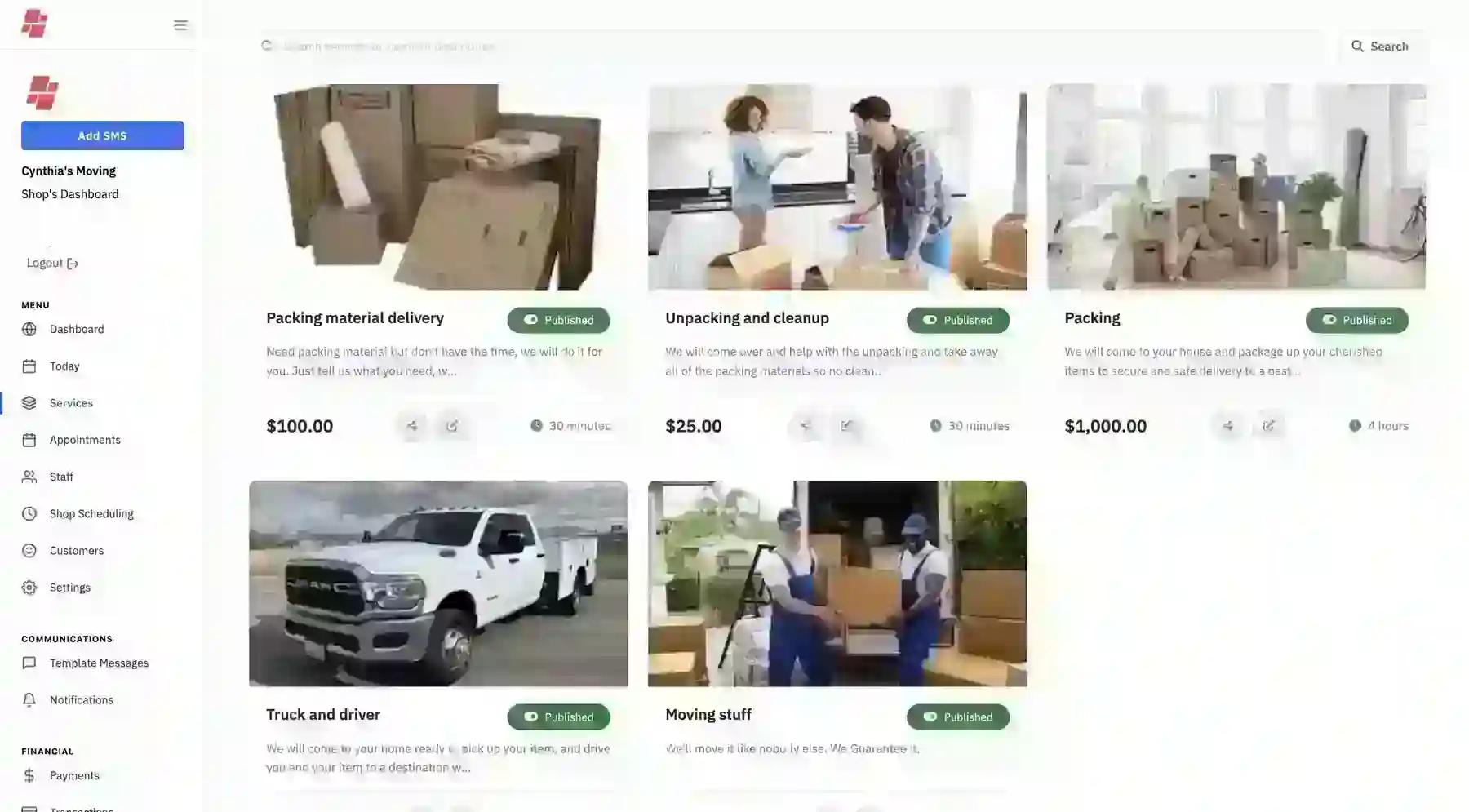
This is where you define what your customers can book. Services combine the business details from Settings, the availability from Shop Scheduling, and the providers from Staff. Press Add Service to start.
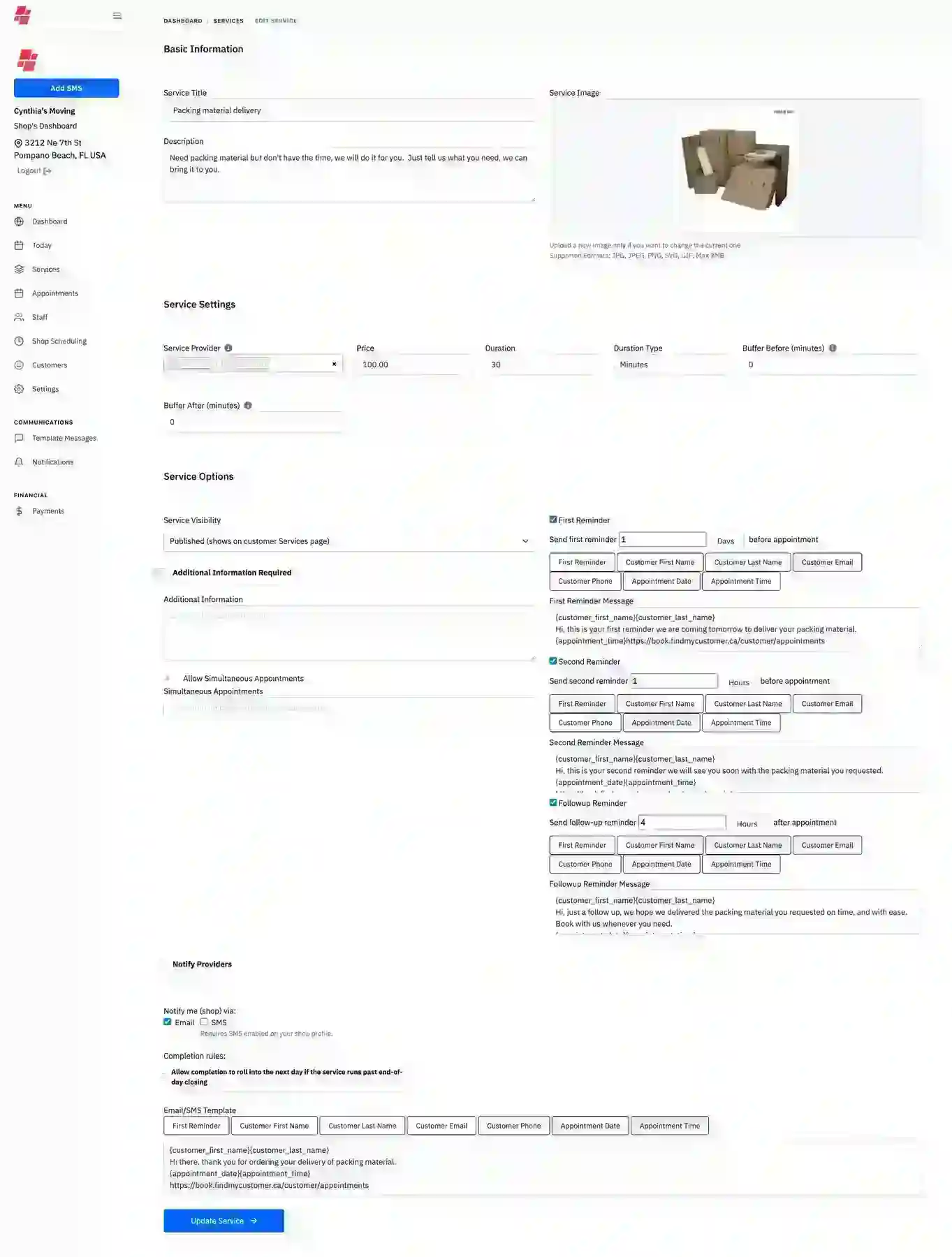
Basic service setup
Service Title
This is the name of the service the customer sees, such as manicure, oil change, or consultation.
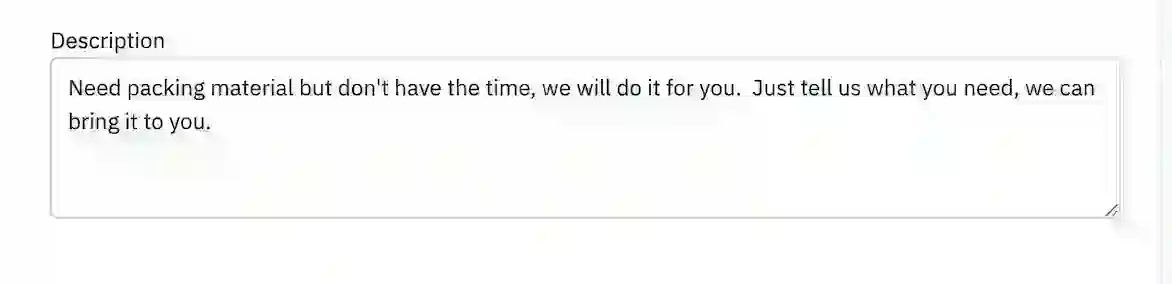
Description
This explains the service to the customer and helps set expectations before booking.
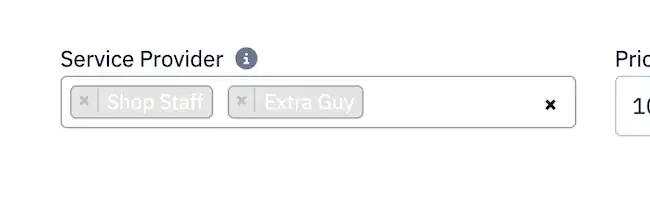
Service Provider
Select one or more staff members you already created in Staff.
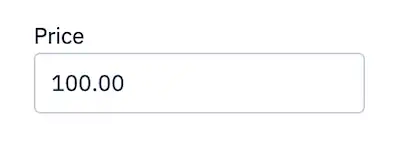
Price
Enter the price you intend to charge for the appointment.
Timing and buffers
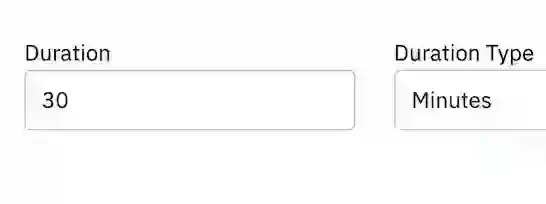
Duration
Set the length of the service in minutes, hours, days, or months.
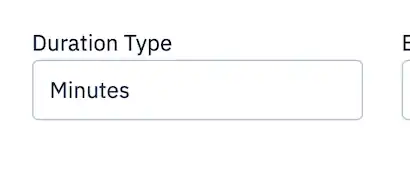
Duration Type
Choose whether the duration is measured in minutes, hours, days, or months.
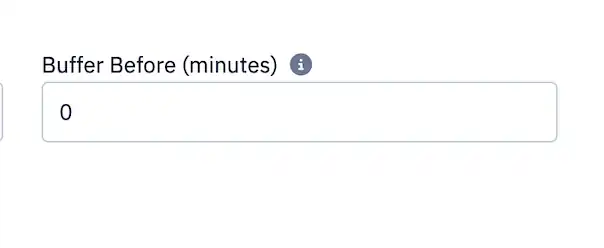
Buffer Before
This time is not shown on the calendar as a bookable slot and can be used for prep time.
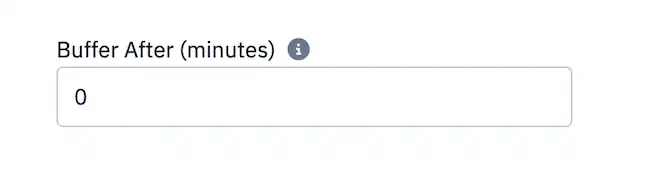
Buffer After
This time is also not bookable and is useful for cleanup or reset time after an appointment.
Customer-facing options
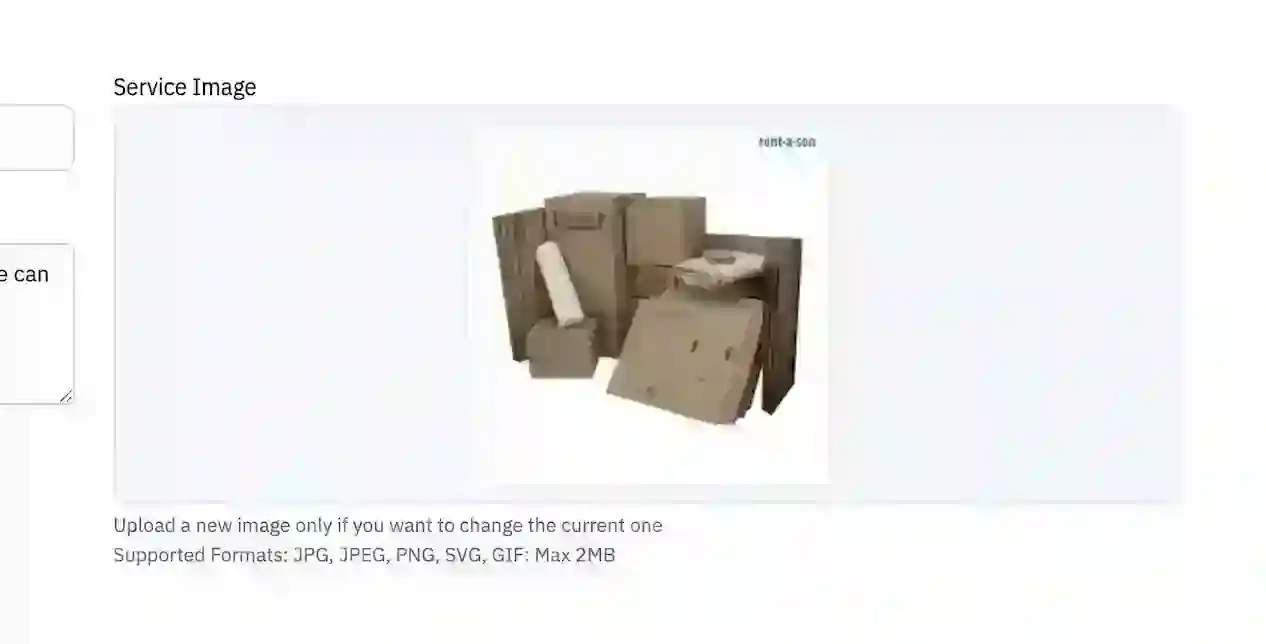
Service Image
Upload a strong marketing image because this is one of the main things your customer will notice.
Service Visibility
- Draft — editable only and not visible anywhere else
- Shop-Only — available only from the shop side, such as the Today page
- Public Bookable — visible on your public calendar
- Published — visible publicly and eligible for marketplace appearance
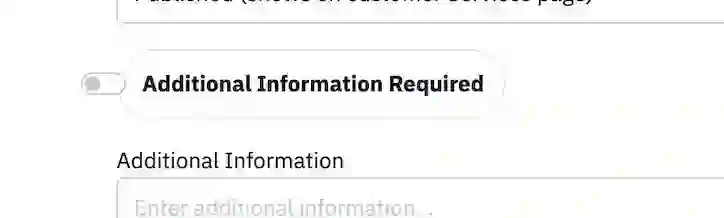
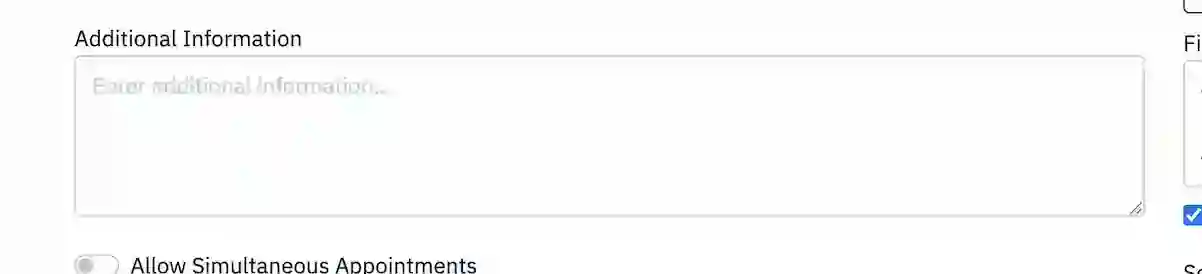
Additional Information Required
Turn this on if you want the customer to complete an extra field during booking.
Additional Information
The text you enter here appears to the customer as guidance or instructions.
Capacity and simultaneous appointments
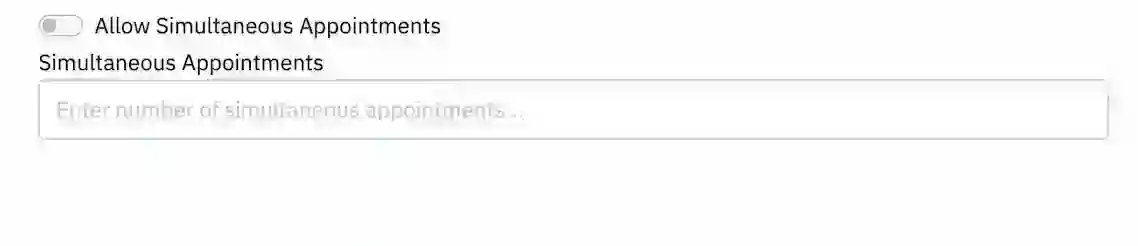
Allow Simultaneous Appointments
Use this when multiple customers can attend the same service at once, such as classes or group sessions.
Simultaneous Appointments
Enter the number of customers that can be booked into the same service at one time.
Reminders and confirmations
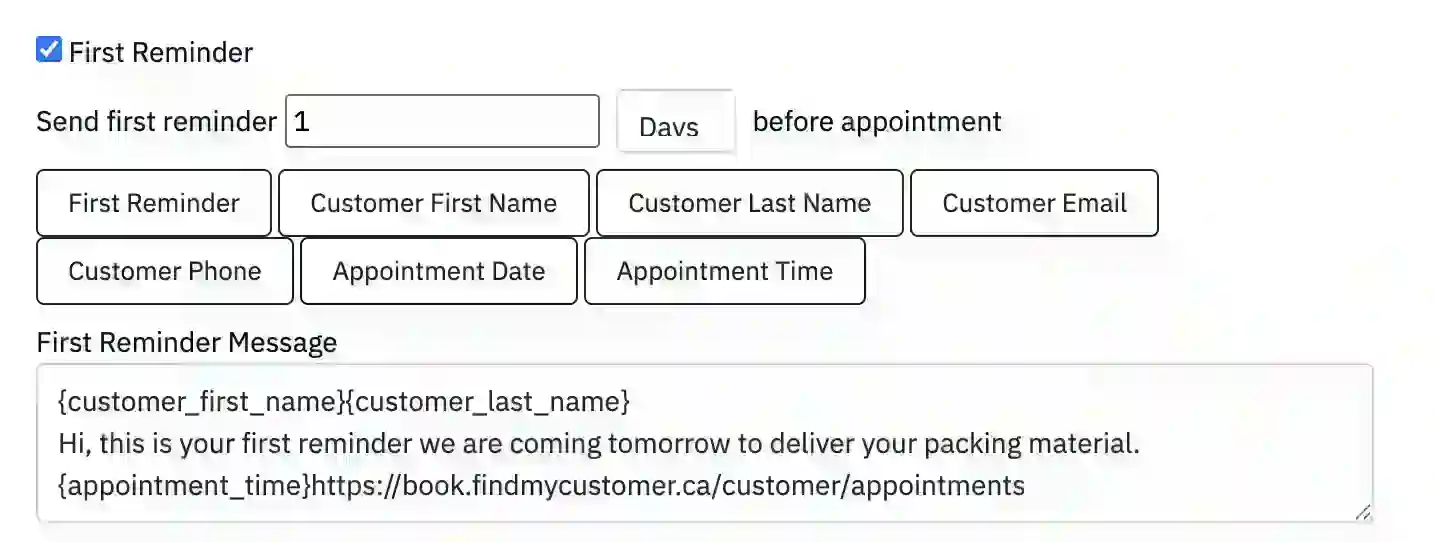
First Reminder
Send a reminder before the appointment date and time.
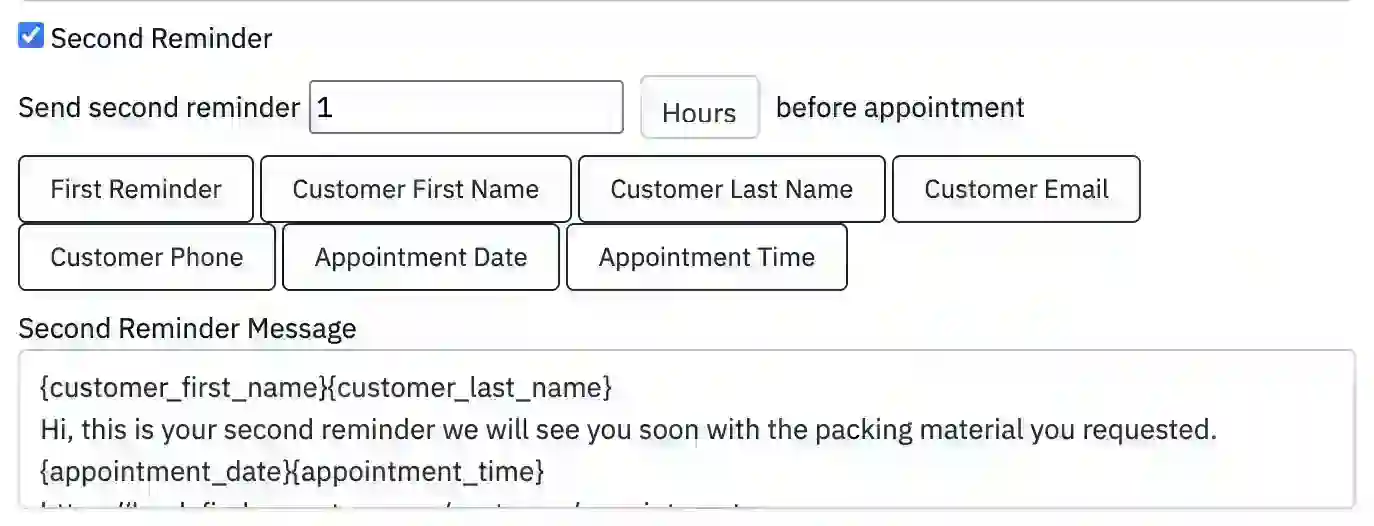
Second Reminder
Use this as another reminder or as a last-minute prompt before the booking.
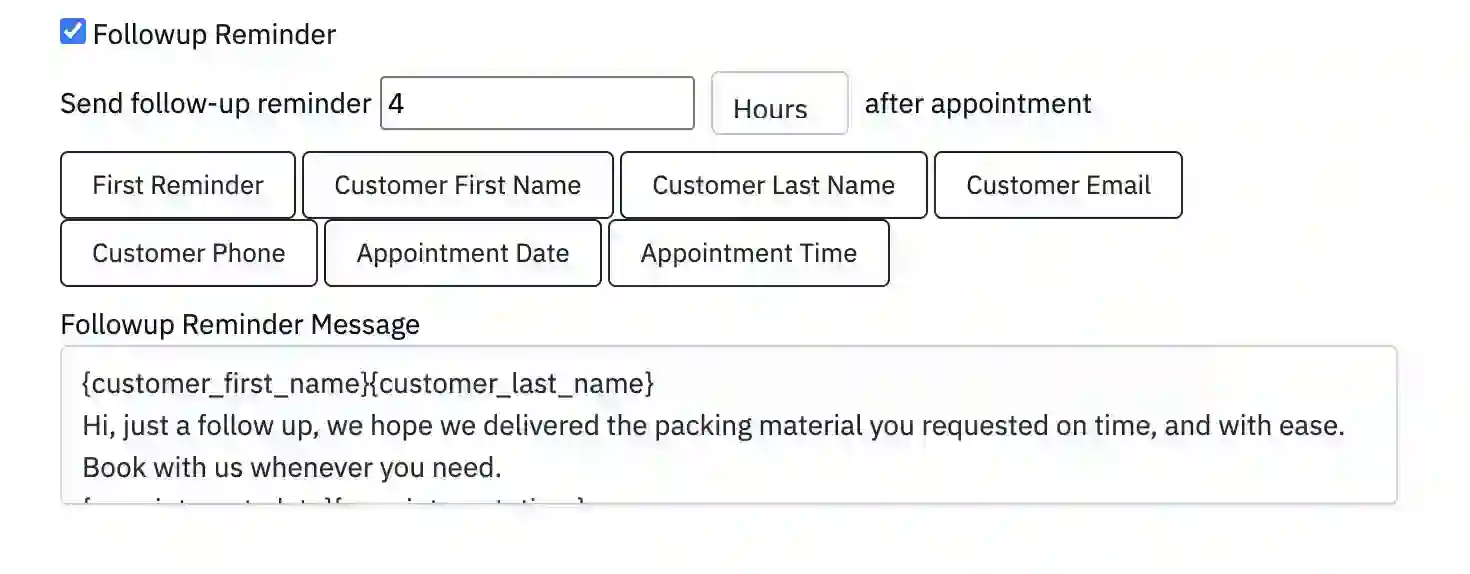
Follow-up Reminder
Send a message after the appointment based on the amount of time you choose.
Reminder Text
Your message appears as an excerpt in emails and can also be used for SMS when enabled.
Notify Providers
Email staff about appointment activity when provider notifications are useful for your operation.
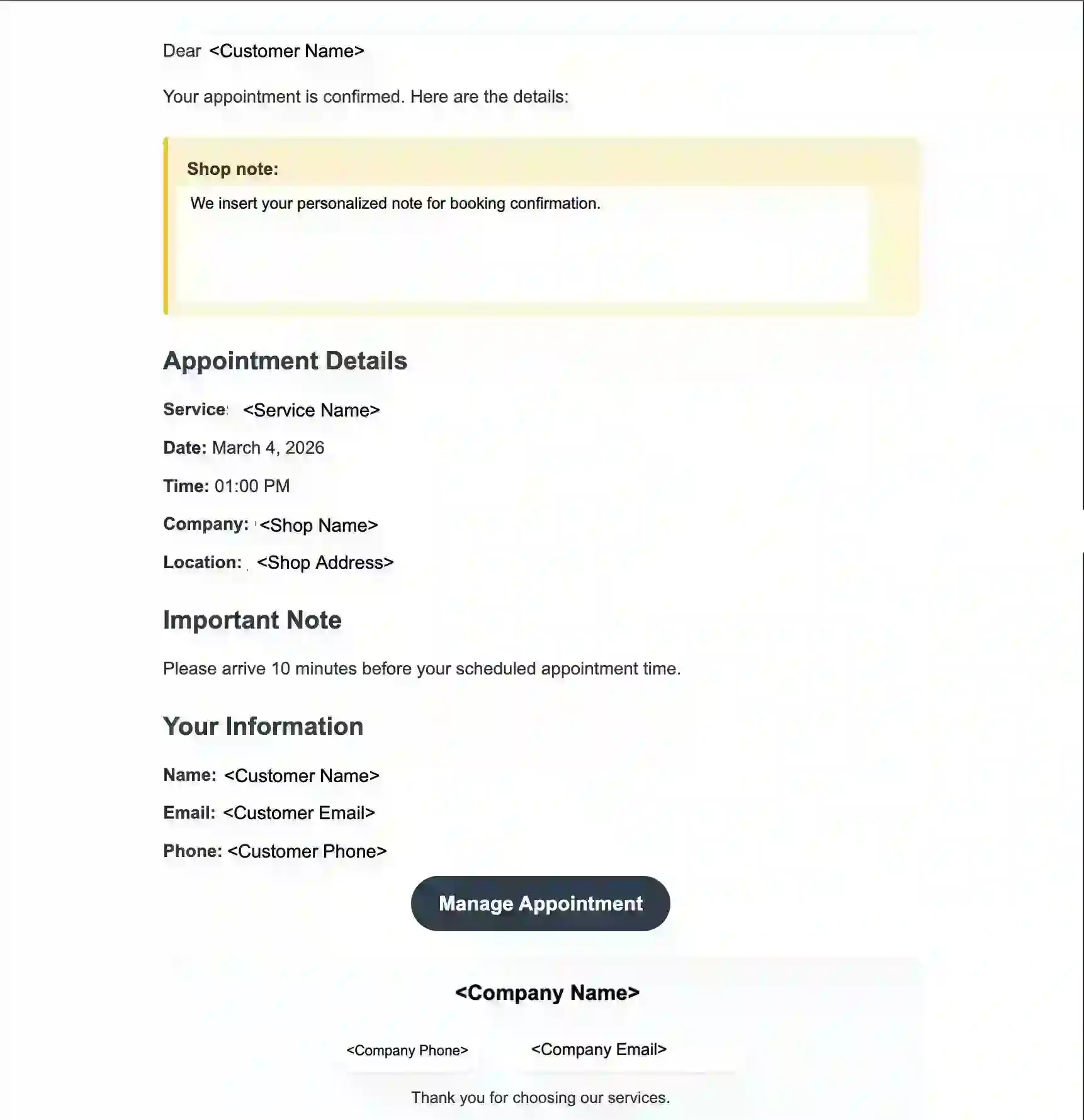
Booking Confirmation
This text appears as part of the booking confirmation email sent to the customer.
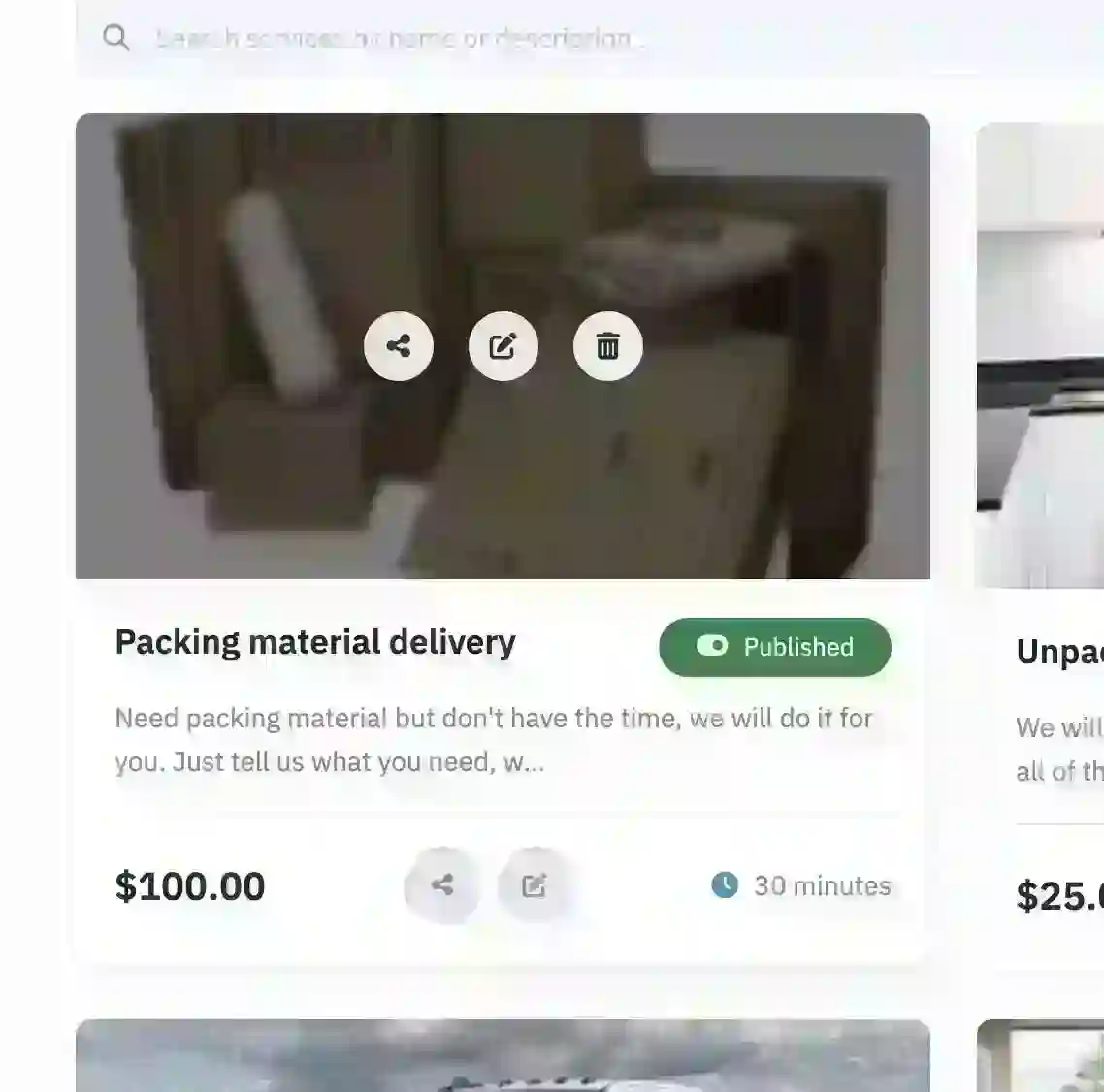
After saving your service
Once saved, you can share the service link, edit the service, or move it to the trash. After your first service is ready, you can begin booking from the Today page or monitor new bookings through Appointments.

Today
The Today page is your operations screen. Once your Settings, Shop Scheduling, Staff, and Services are ready, this is where you will spend most of your time. You can view the day, update appointments, and book quickly while speaking to customers.
Daily summary and date navigation
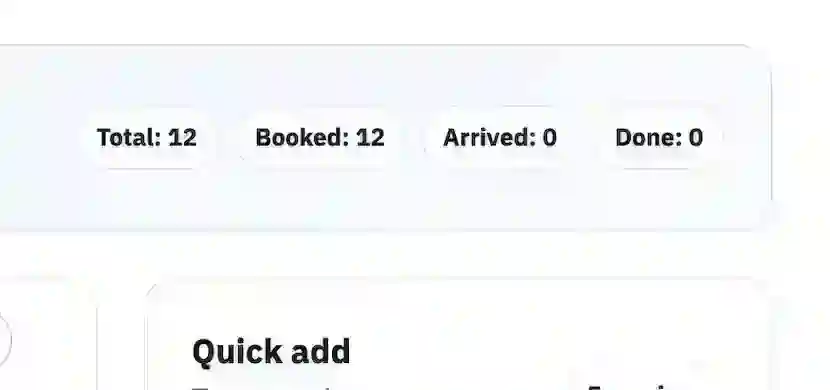
Today summary
The top-right summary gives you a quick read on how the day is going based on appointment statuses.
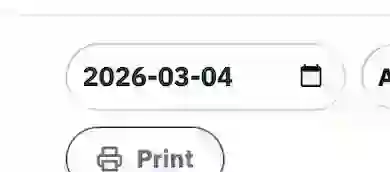
Change the date
Use the date control near the top centre to move to another day’s planner view.
Work from the day planner
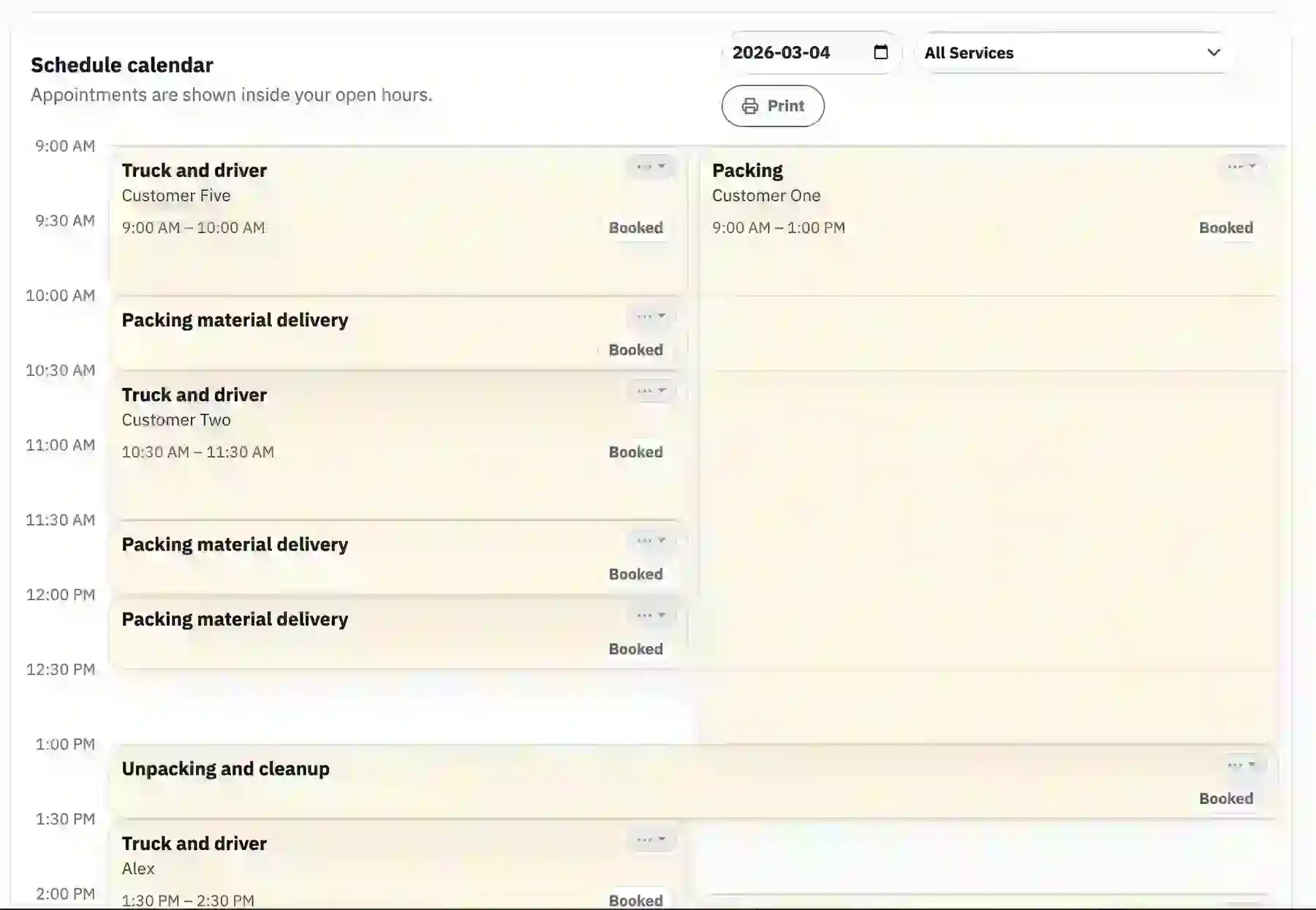
The centre planner is where you see the full day and interact with appointments.
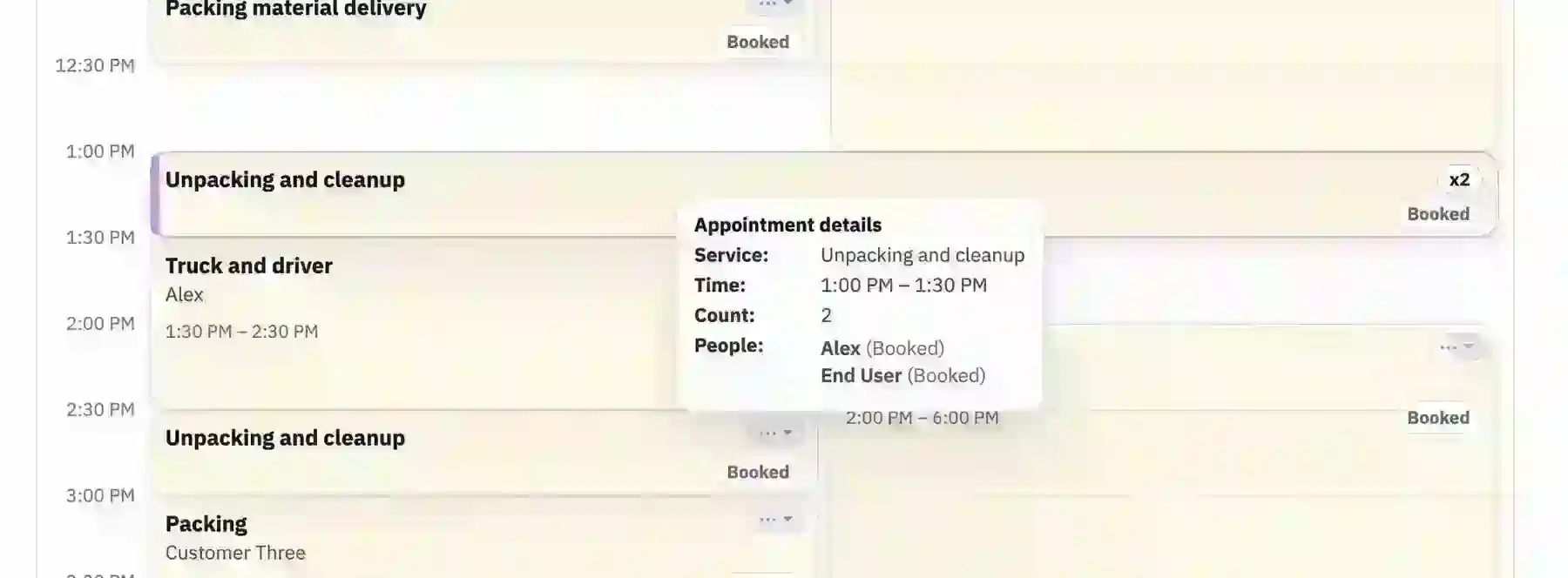
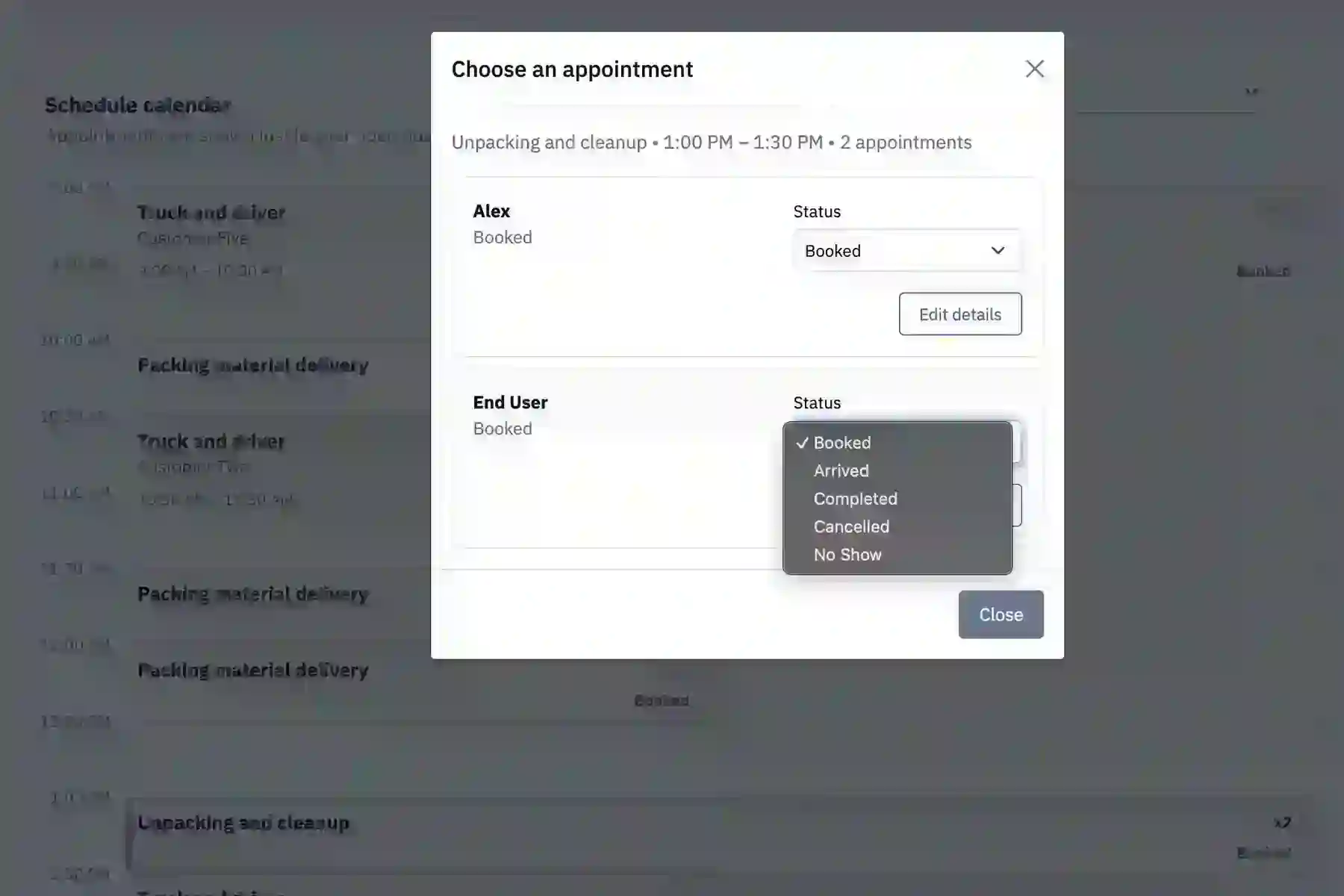
See appointments
Hover over or click appointments to see key details without leaving the page.
Update status
Move appointments through booked, arrived, complete, cancelled, and no show statuses.
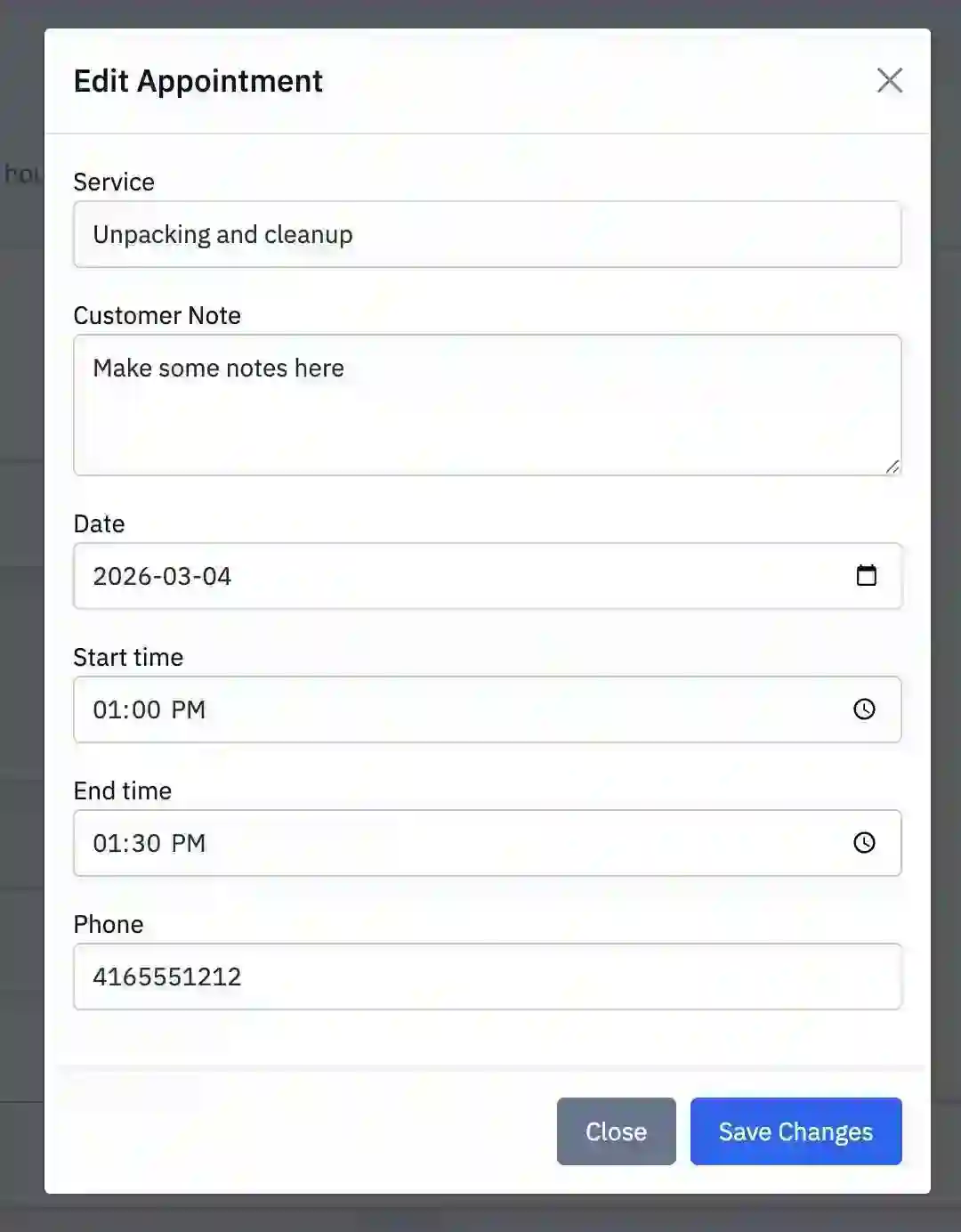
Edit date, time, and notes
Quickly adjust scheduling details when customers need a change.
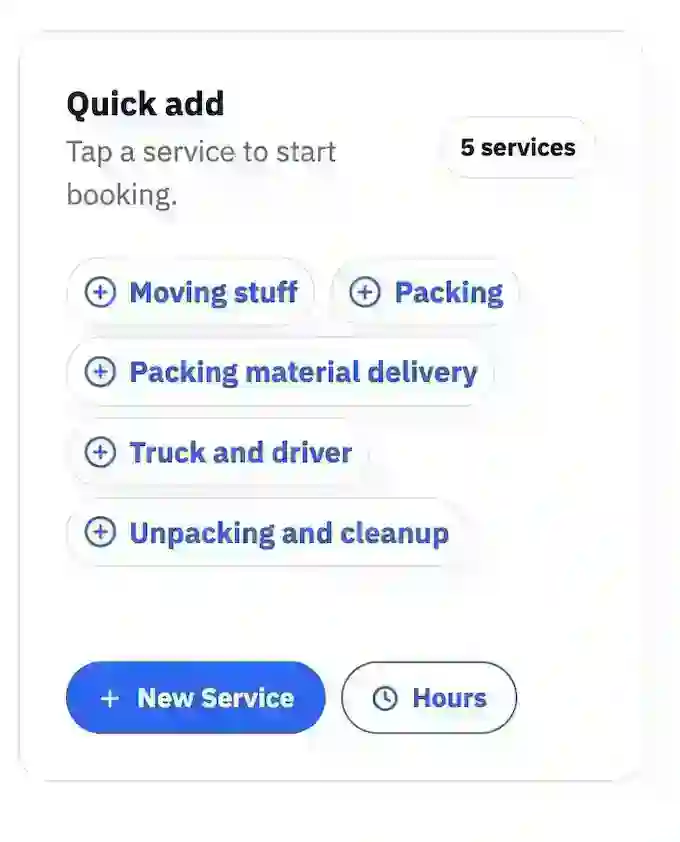
Quick Add services
Use the right column to book quickly from your existing service list while on the phone or at the counter.

Appointments
The Appointments page shows your bookings in chronological order and gives you another place to review and update them. Use it alongside the Today page when you want a broader appointment list rather than a day-planner layout.
View all appointments
Review upcoming and past bookings in a structured list.
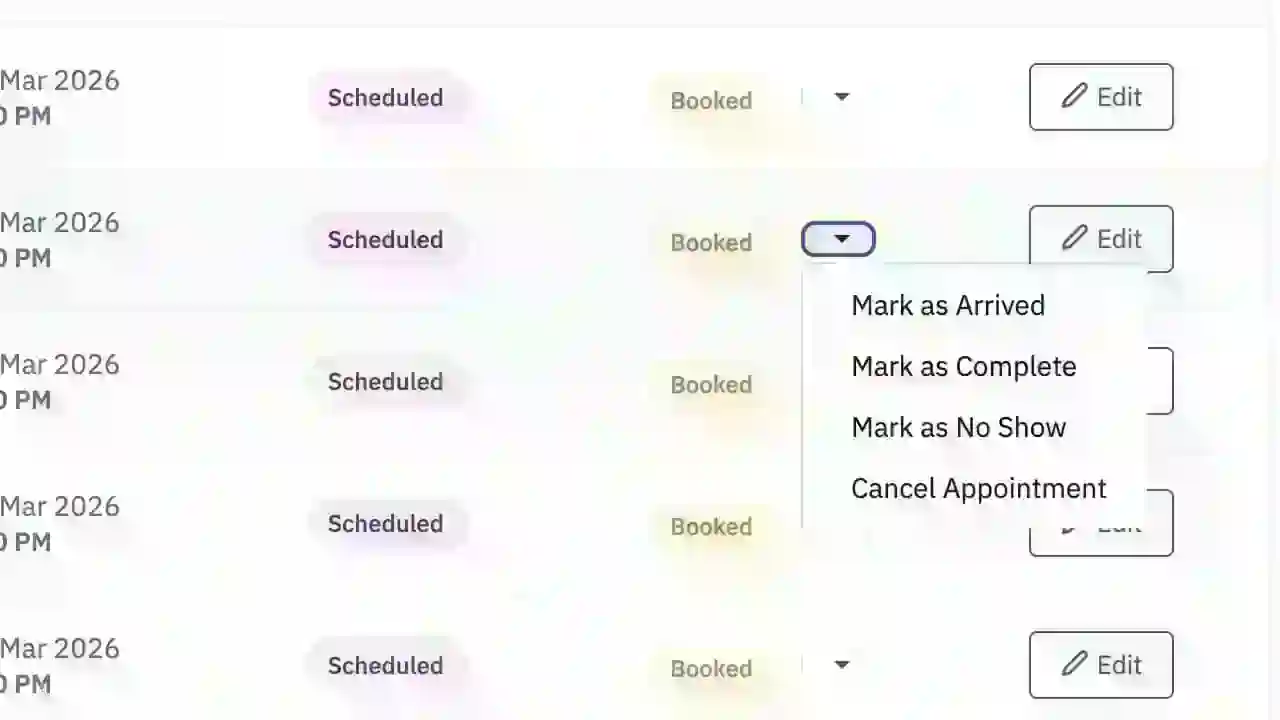
Edit an appointment
Select edit on any appointment to update its details or status.
Status updates
Track whether an appointment is booked, arrived, complete, cancelled, or no show.
Completed appointments
For completed bookings, notes remain the main editable field.


Customers
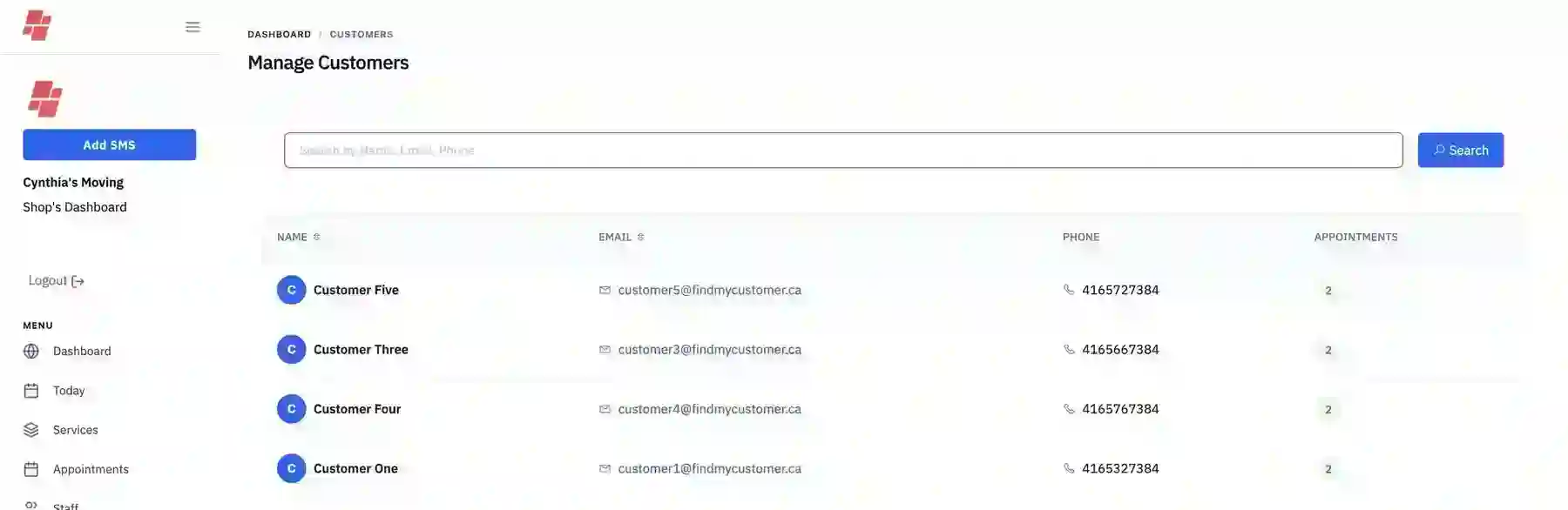
This is your customer database. FMC requires core details like name, email, and phone number so you can identify people, review attendance, and support future communication. Use this page to search customers and understand repeat activity.
Required customer information
Name, email, and phone number are enforced to keep records useful and consistent.
Search your database
Find returning customers quickly when booking or reviewing appointment history.
Attendance frequency
Use the customer record to understand visit patterns and repeat engagement.
Operational tie-in
Customer records support the workflows you manage in Today and Appointments.
Dashboard
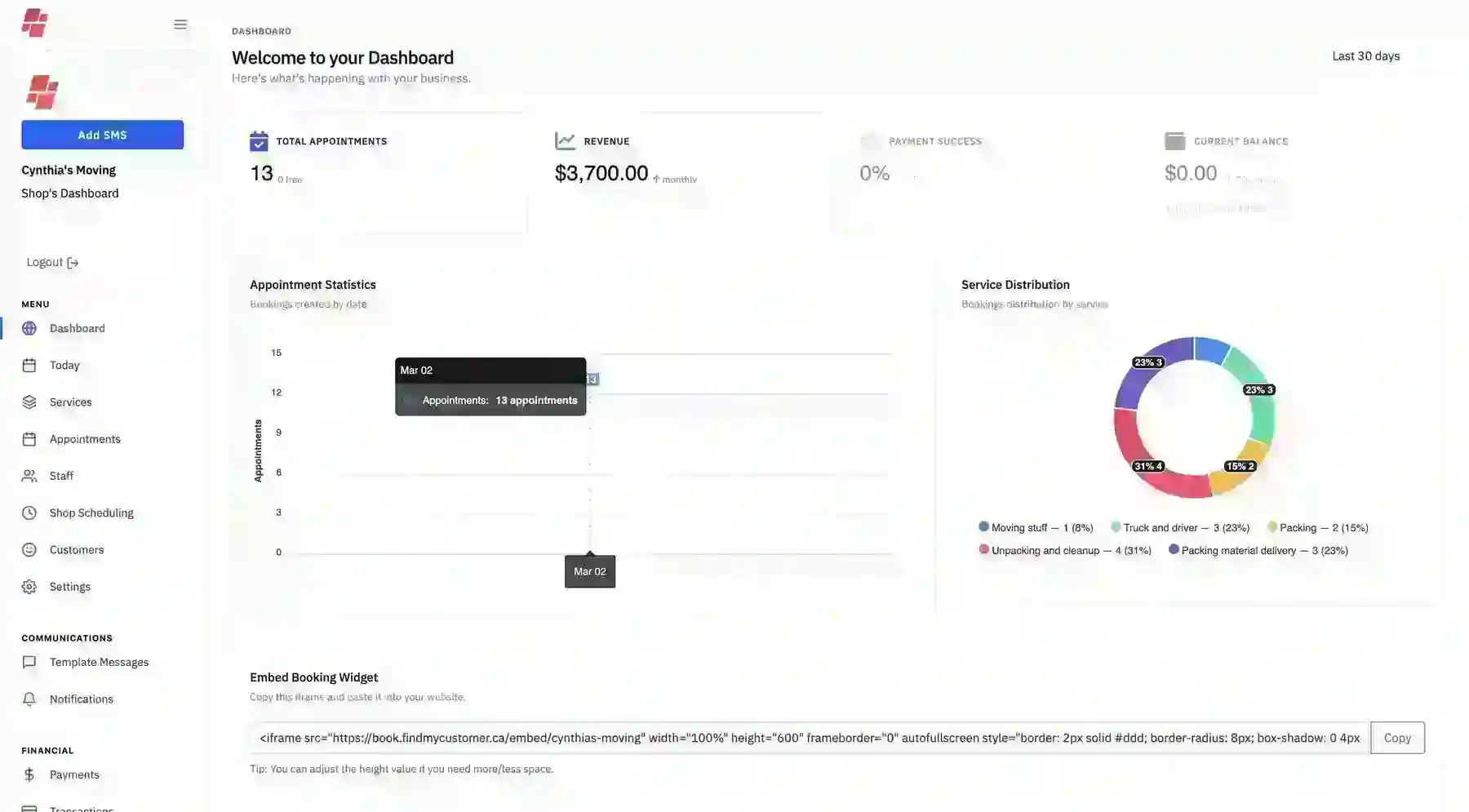
The Dashboard gives you a summary view of past appointment performance. Once your shop is active, this page helps you monitor volume, completed revenue, and service popularity. It works best after you are already using the workflows in Today, Appointments, and Services.
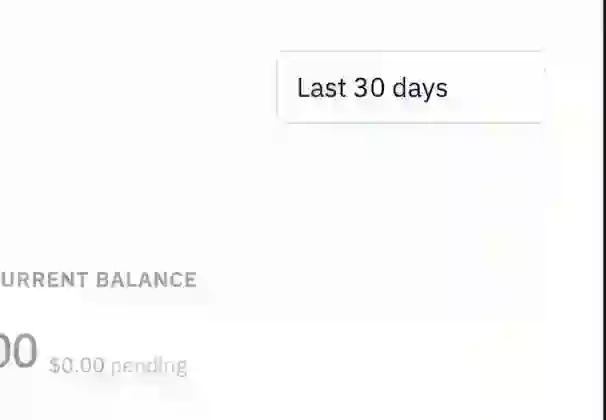
Date filter
Use the top-right date filter to control the reporting window shown on the dashboard.
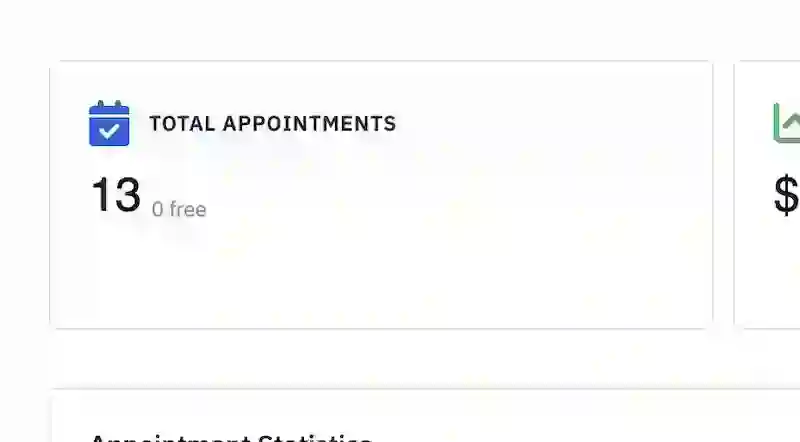
Total appointments
See how many appointments were recorded during the selected window.
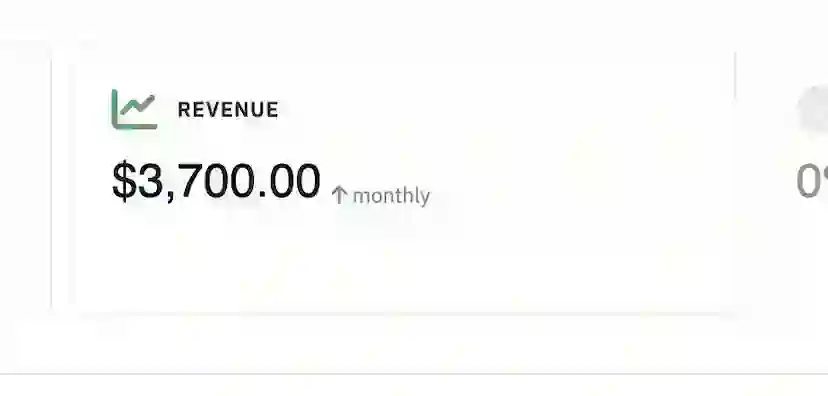
Total revenue
Revenue is based on completed appointment pricing in the selected timeframe.
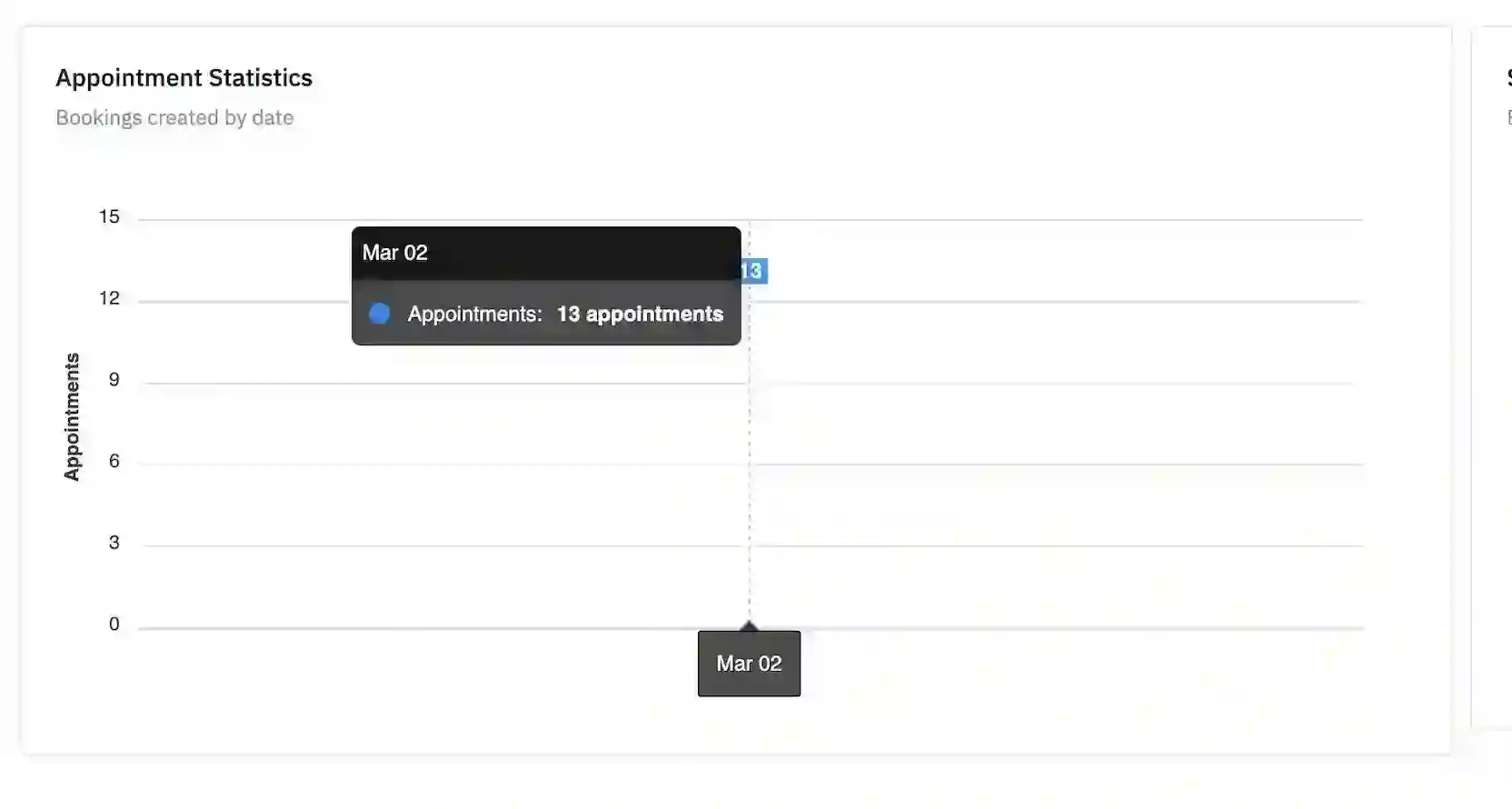
Appointment statistics
Get a summary of statuses and general booking activity over time.
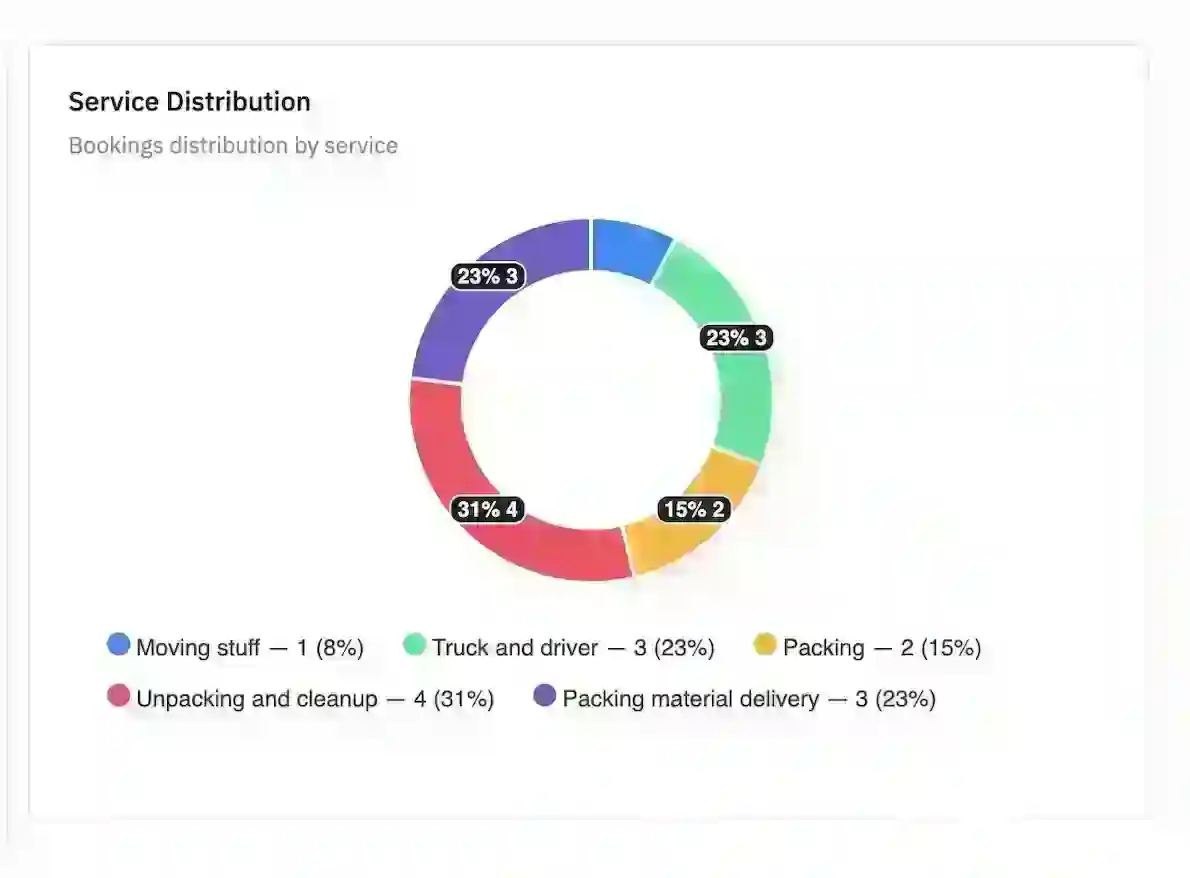
Service distribution
The pie chart helps you spot which services are most popular with your customers.
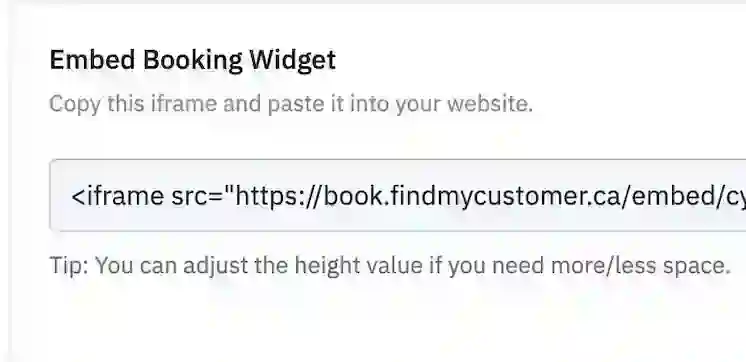
Booking widget and hosted link
At the bottom, copy your website widget code or share the hosted booking link if you do not have your own site.
Template Messages
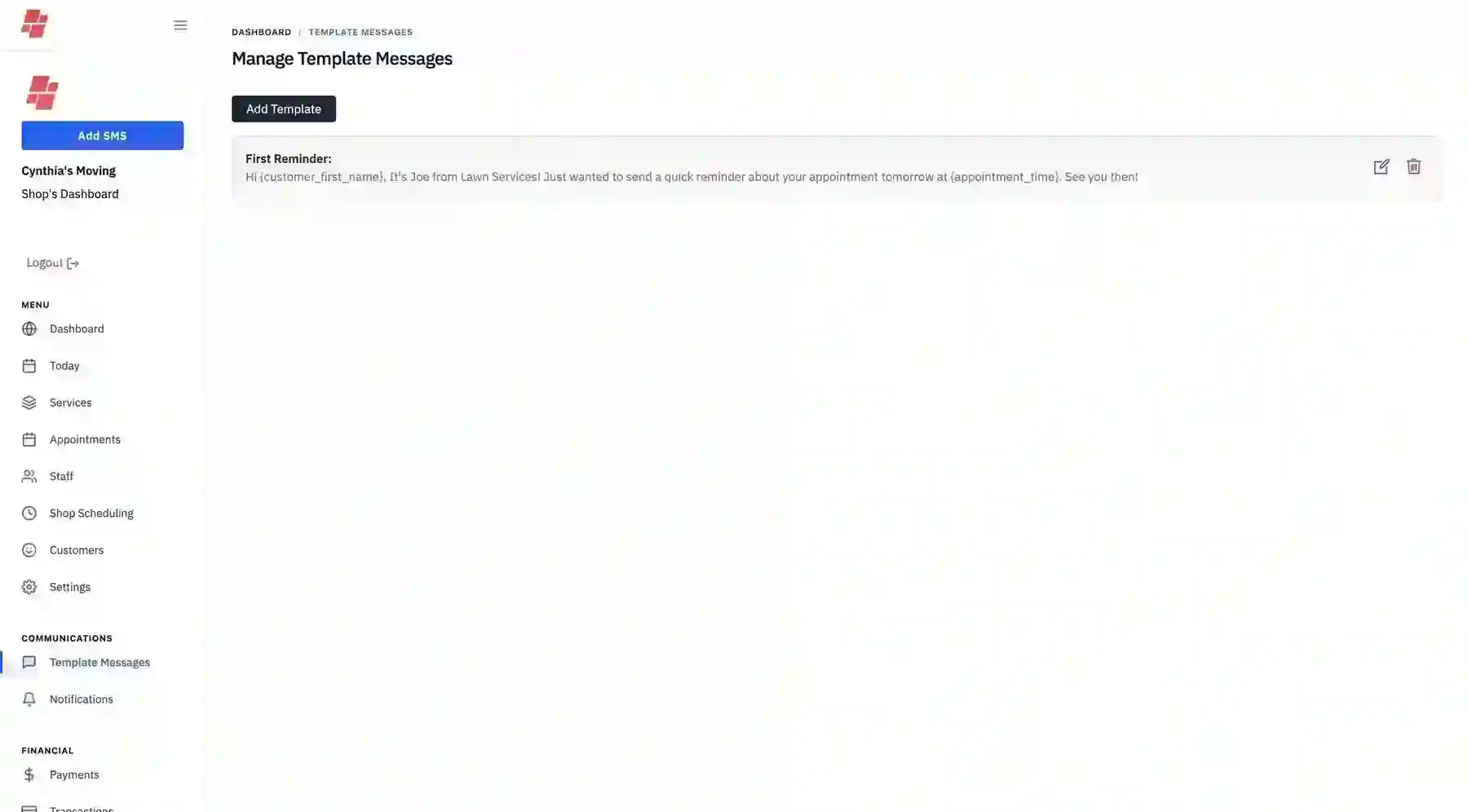
Template Messages are used during service creation when you want reusable, pre-written text for customer messaging. This saves time and helps your communication stay consistent across reminders and confirmations.
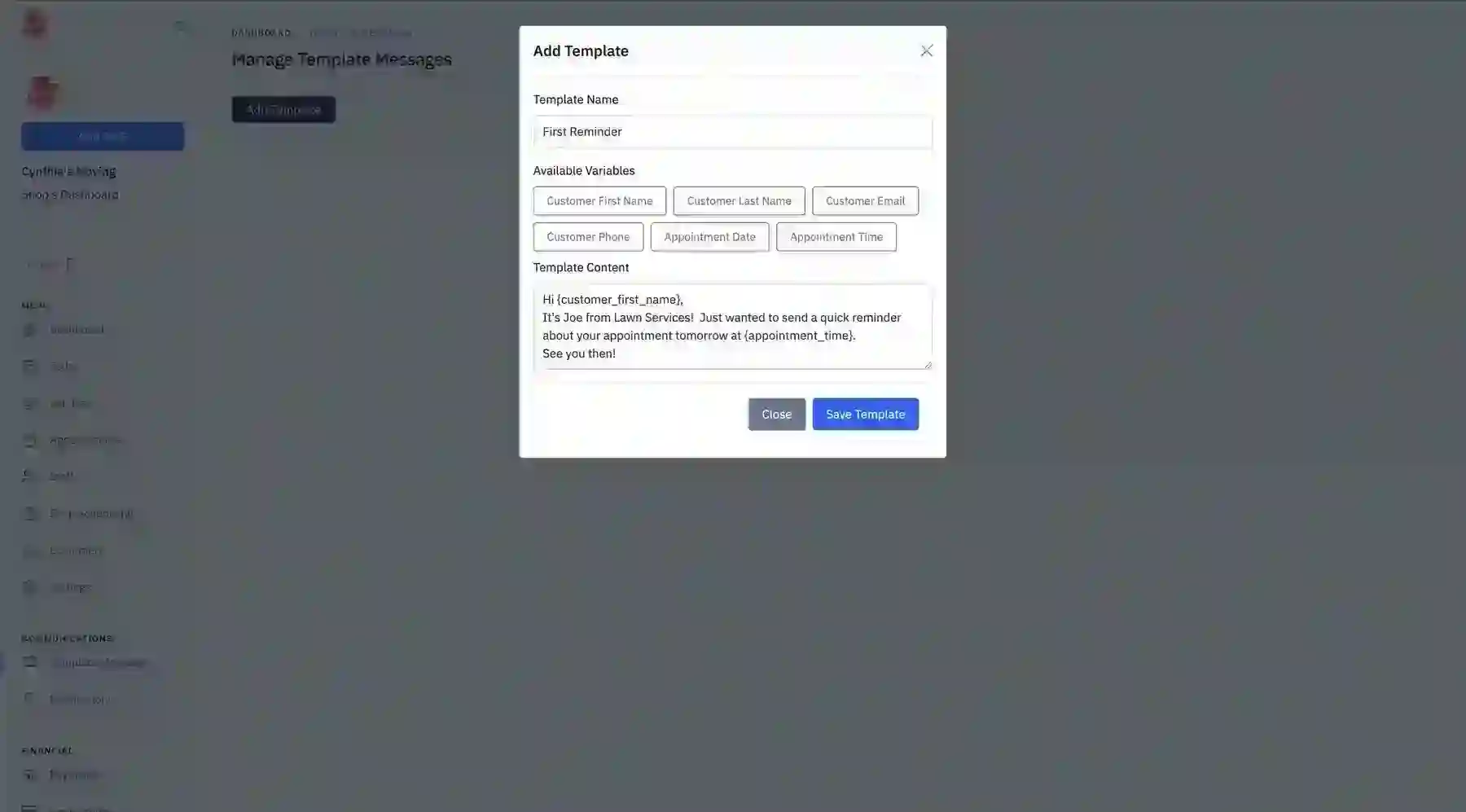
Template Name
This is the label you will see when selecting a saved template later.
Template Content
Write your message here and use the provided buttons to insert contextual appointment or customer data.
Why use templates
Templates make it easier to build reminders without rewriting the same message every time.
Where it connects
Templates support the reminder workflows configured inside Services.
Notifications
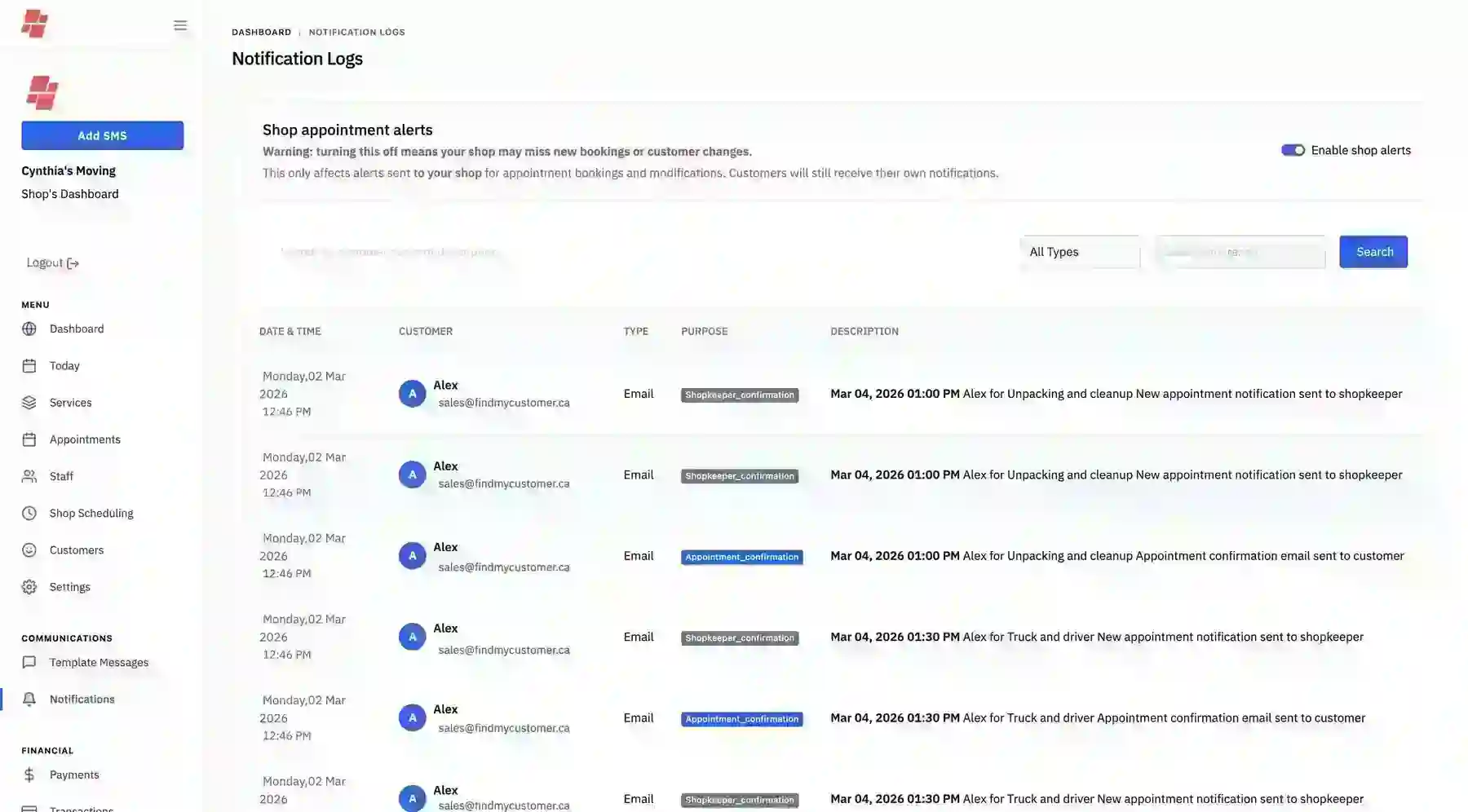
Any time an email or text message is sent, it is logged here. This page helps you review what went out, how often notifications were sent, and whether shop alerts are enabled. It is especially useful when working with service reminders and template messages.
Communication history
Review the frequency and content of sent notifications in one place.
Shop appointment alerts
By default, your shop email address receives notifications when an appointment is created, changed, or cancelled.
Top-screen toggle
The toggle at the top of the page lets you turn shop alerts off if that fits your workflow better.
Operational tie-in
Notifications help you confirm what customers and providers received after activity on the Today page.
Future Functionality
A few items referenced in the interface or documentation are planned for future use. To avoid confusion for business owners, treat these as upcoming features rather than active tools today.
Payment options
Referenced on the Dashboard but currently noted as future functionality.
Payments
Not yet a live workflow in the current help flow.
Transactions
Also marked as future use and should be presented separately from active features.
Frequently Asked Business Calendar Questions
Send us a Question
Let's chat about growing your business together. Get in touch now!